Crop, resize, export. Whole folder.
Image Routine is a Mac app for resizing, cropping and converting images in bulk. Set up the steps once, check the preview, then run them on one image or a folder. Free, and it never changes your originals.
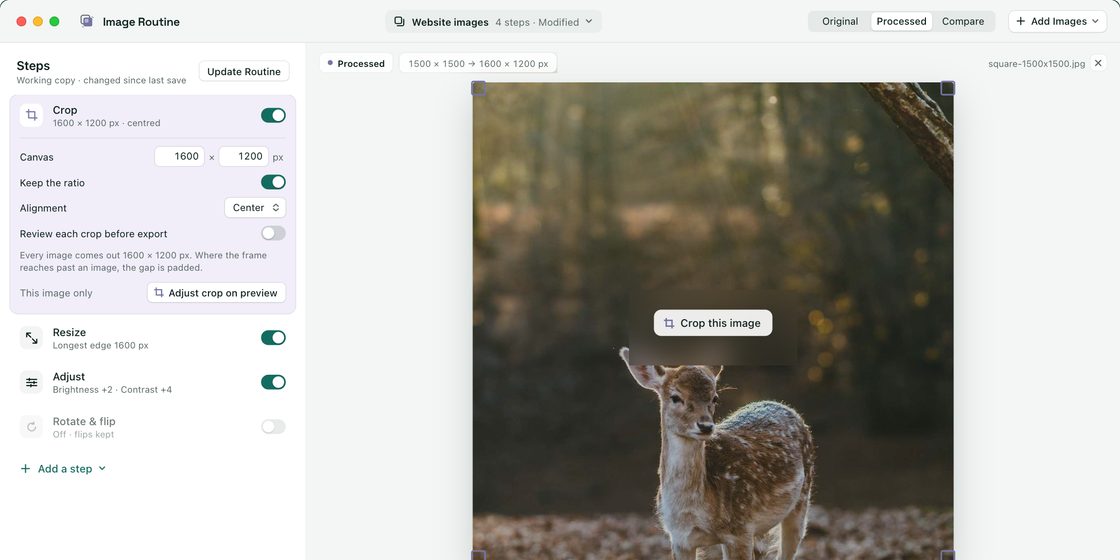
Four steps, switched on as you need them
Open an image and the editor lists Crop, Rotate and flip, Resize and Adjust. Turn on the ones you want, adjust them while watching the preview, then export.
-
Crop to a fixed size
Set a canvas and every image comes out at that size, positioned by a nine-way alignment. Leave the canvas off to keep each image’s own dimensions.
-
Folders, not just files
Drop a folder and each image runs through the same steps, one at a time. A file that fails does not stop the others. You can cancel at any point.
-
Save steps as a Routine
Save the current steps as a Routine and apply it to the next batch. Changes in the editor stay a working copy until you choose Update Routine.
-
Resize in pixels or percent
Fit, Fill, Longest Edge or Scale modes. The output size is shown as you type, with a warning if unlinked dimensions would distort the image.
-
Adjust, sharpen, remove background
Brightness, contrast and sharpen. Foreground removal uses Apple’s Vision framework, and a Background step fills the result with any colour.
-
Export without overwriting
JPEG, PNG, WebP or HEIC with a quality setting. If a file already exists you can rename, skip or replace. Replace is refused when it would overwrite a source file.
Every export the same size
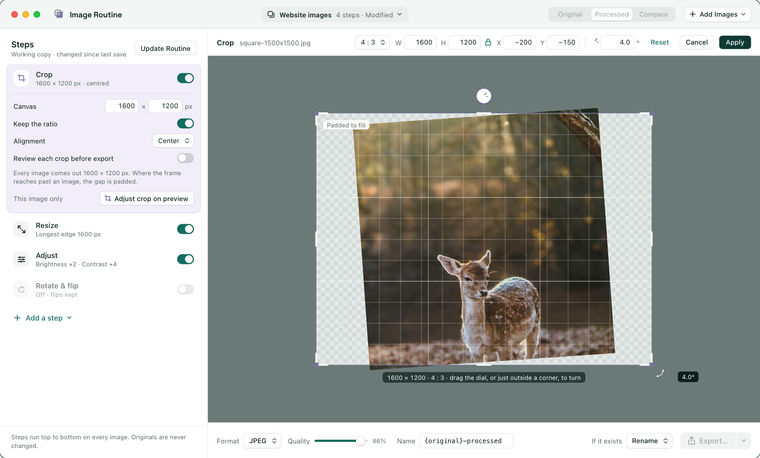
Give the Crop step a canvas, say 1600 by 1200, and every image in the batch is exported at that size. If an image is smaller or a different shape, the frame sits over the empty space and the gap is filled with transparency or a colour you choose. You can straighten with the dial or type an angle.
- Ratio presets, exact width, height and position fields, and a padlock to hold the ratio
- Works from the keyboard: Tab picks a handle, arrows move it, Return applies
- Edits happen in the preview itself, not in a separate window
How it works
- 01
Add images
Drop an image or a folder onto the window. One image opens in the editor. Several appear in a filmstrip as a batch.
- 02
Set up the steps
Turn on Crop, Rotate and flip, Resize or Adjust. Reorder them and change settings while the preview updates.
- 03
Export
Choose a format and a destination folder. Progress is shown per file. The originals are not changed.
Nothing leaves your Mac
There is no account and no analytics, and the app never connects to the internet. It is sandboxed, so it can only read the files and folders you pick. It will not write to a source file even if you choose Replace.
Read the privacy policy- 0 bytes sent anywhere
- 0 accounts or sign-ins
- 0 trackers or analytics
- 100% on-device processing
Free on the Mac App Store
Requires macOS 14 or later. Opens JPEG, PNG, HEIC, TIFF and WebP. Exports JPEG, PNG, WebP or HEIC.